

The console
Firenook has its own web console. It shows every emulator the suite runs, live, and lets you browse and change their data, call your functions, read the log and test your Security Rules. It replaces Google’s Emulator UI, on the same port.
Open it
Section titled “Open it”With the default ports, the console is at:
http://127.0.0.1:4000/consoleIn the terminal Firenook draws, press o to open it in your browser. The
address is also the first row of the ready summary, so you can click it
there. The port is the Emulator UI’s: emulators.ui.port in firebase.json
changes it, and the root of the port, http://127.0.0.1:4000/, sends the
browser to the console. With the default host, localhost, the console
listens on both 127.0.0.1 and ::1, so http://localhost:4000/console
works whichever address your browser tries.
The console is on by default with emulators:start.
emulators.ui.enabled: false in firebase.json turns it off, together
with the logging listener, as in the official suite. emulators:exec
leaves it off unless you pass --ui or firebase.json sets
emulators.ui.enabled: true. --ui turns the console on even when
firebase.json turns it off, as the official --ui does.
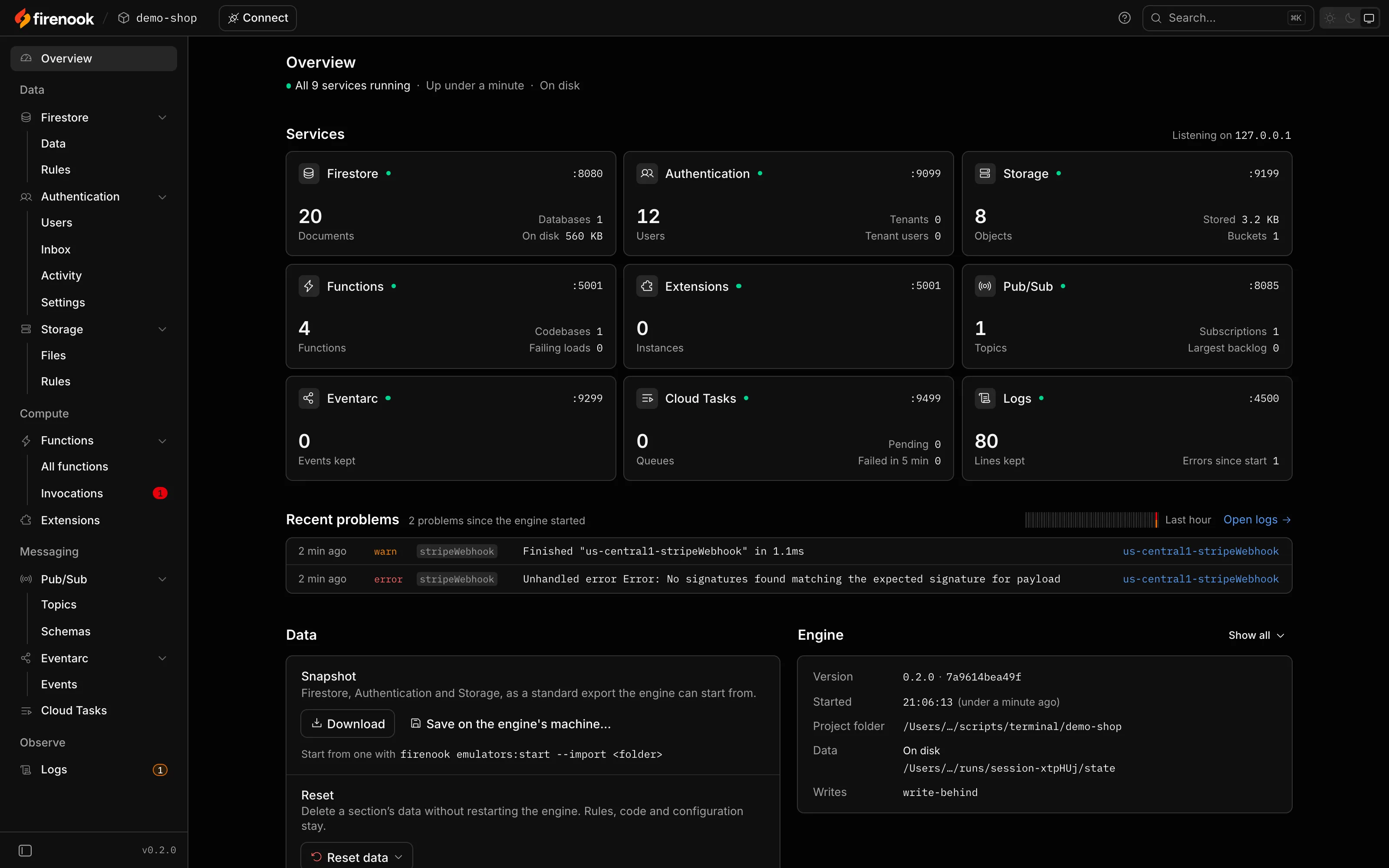
Sections
Section titled “Sections”The sidebar groups the sections by what they do: Data, Compute, Messaging
and Observe. A section whose emulator is not running is dimmed. Open it and
it says why, for example that firebase.json does not configure the service
or that --only left it out, and shows the change that turns it on.
| Section | Pages | What you do there |
|---|---|---|
| Overview | one | See whether every emulator is healthy, what each holds and the newest problems; take a snapshot of the data or reset it; read the engine’s version and configuration |
| Firestore | Data, Rules | Browse collections and documents in a grid, edit them, run a query the way your app does, and view the data as a given user would. The Rules page edits the rules and shows every decision with the line and the values behind it, with a playground and saved tests |
| Authentication | Users, Inbox, Activity, Settings | Search and edit users and their custom claims (with the token the claims produce); read every email link and SMS code the emulator would have sent; see every Auth call with its exact error; manage tenants and blocking functions |
| Storage | Files, Rules | Browse every bucket and folder with live counts and sizes, preview images, video, audio, PDFs and text, edit metadata and download tokens, upload files and folders, and move, copy or delete at any scale. The Rules page works as Firestore’s does |
| Functions | All functions, Invocations | See every function by codebase with its trigger and health, call HTTP and callable functions as any user, send test events, and read every invocation with its logs and timing, or run it again |
| Extensions | one | See each instance with its source, whether it can start offline, its parameters and where each value comes from, the functions it adds and the events it emits; reconfigure and reload it |
| Pub/Sub | Topics, Schemas | See topics with their subscriptions and the functions they trigger, every message and who received it, publish JSON, text or bytes with attributes, read or purge a backlog, and check Avro schemas as you type |
| Eventarc | Events | See every event on every channel with the triggers it reached or missed, and publish a custom event |
| Cloud Tasks | one | See queues with their settings and counters, waiting and running tasks with their attempts and next retry, and finished ones; enqueue by hand, run a task now, pause, hold and purge |
| Logs | one | Read every emulator’s log in one stream with filters and counts, structured payloads, and each function invocation as a group, with links into the section a line is about |
Sections link to each other wherever one names what another shows: an invocation opens its log lines, a log line opens the section it is about, and a denied request opens its decision on the Rules page.
The Rules pages
Section titled “The Rules pages”The Firestore and Storage Rules pages show the rules in force for the
database or bucket you choose. For a Firestore database that
firebase.json does not list, the page says whose rules govern it: the
(default) entry’s, or the first entry’s, as the official emulator applies
its one rules file to every database. Applying rules on the page gives that
database its own.
Saved tests on the Firestore Rules page download as one
firestore.rules.test.ts file for @firebase/rules-unit-testing and
Vitest, one test per saved case, which runs against Firenook in your tests
or in CI:
npx firenook emulators:exec --only firestore "npx vitest run"The console follows the engine live, so lists, counts and badges change as your app works. A browser keeps one connection for all its console tabs. When the connection drops, the top bar says so once; when the engine restarts, the console says so and loads the data again.
The Overview’s data card
Section titled “The Overview’s data card”The Overview’s data card works on the whole suite:
- Snapshot downloads the data as a zip of a standard export, the same
format
--importreads, or saves it on the machine the engine runs on. - Reset deletes one section’s data, or all of it. Resetting more than one section asks for the project id. A Firestore reset runs no Functions triggers unless you ask it to.
Each runs as a job: one at a time, with its progress shown in every open tab, and it carries on if you close the tab that started it.
Find your way
Section titled “Find your way”| Key | Does |
|---|---|
⌘K or Ctrl+K |
Search the console: users, collections, documents, files, functions and actions |
? |
Show every keyboard shortcut, including the current page’s |
[ |
Collapse or expand the sidebar |
t |
Hide or show the current section’s panel |
Light and dark
Section titled “Light and dark”The three buttons at the end of the top bar pick light, dark, or the operating system’s setting. The choice is kept per browser. On the system setting, the console changes when your system does.
Connect your app
Section titled “Connect your app”The Connect button, in the top bar on every page, opens a dialog with the code that points an app at this engine, with the ports in use, the project id and the host your app sees:
| Group | Tabs |
|---|---|
| Apps | Web, Flutter, Apple, Android |
| Servers | Admin (Node), Python, Go, Java |
| Configuration | Environment variables, firebase.json |
| Agents | Coding agent |
For a demo- project the app snippets are complete and run as printed; for
a real project id they keep your app’s own configuration and add the lines
that point each SDK at the emulators. Each snippet sets what its SDK reads,
since a service whose setting is missing goes to production:
- Apple turns TLS off for Firestore (
settings.isSSLEnabled = false), which the emulator does not speak;useEmulatoralone leaves it on. - Admin (Node) sets the variables for Firestore, Auth, Storage, Pub/Sub, Cloud Tasks and Eventarc.
- Python sets
STORAGE_EMULATOR_HOST, a URL, because Python’s Storage client ignoresFIREBASE_STORAGE_EMULATOR_HOST, and Cloud Tasks’ variable. It sets none for Eventarc, which the Python SDK does not publish to. - Java builds its Storage and Pub/Sub clients on the emulators, since they read no variable. It has nothing for Cloud Tasks or Eventarc.
- Python, Go and Java point the SDK at demo credentials, the file
emulators:execwrites, so it never asks Google for a token.
The Environment variables tab lists every variable emulators:exec
sets for the services that run. The host picker offers the engine’s
own address, the address you opened the console at, 10.0.2.2 for the
Android emulator, or one you type, and remembers your choice. The
firebase.json tab prints the emulators block for the ports this engine
runs on. The Coding agent tab sets up the MCP server and
shows when an agent last called it.
A link can open the dialog on one tab: /console?connect=python.
Offline
Section titled “Offline”The console is part of the engine binary. Its pages, scripts and fonts come from the engine itself, so it works with no network connection.
Old Emulator UI links
Section titled “Old Emulator UI links”Google’s Emulator UI is not served since 0.2.0-next.3. Its old addresses, in bookmarks or in links other tools print, lead to the console’s matching section:
| Old address | Leads to |
|---|---|
/ |
/console |
/firestore/... |
/console/firestore |
/firestore/requests |
/console/firestore/rules |
/auth |
/console/auth |
/storage/... |
/console/storage |
/functions |
/console/functions |
/extensions |
/console/extensions |
/logs?q=... |
/console/logs?q=..., with the query kept |
A path inside a section, such as one document’s, opens the section’s first
page rather than that document. /api/config on the same port still
answers with every emulator’s host and port, for the tools that read it.
Reach it by another name
Section titled “Reach it by another name”The console answers only for the names that can only mean this machine:
localhost, 127.0.0.1, ::1, the --host address, and every name under
localhost, such as demo-shop.localhost. Browsers resolve those names to
your own machine themselves, so no web page can point them elsewhere. That
keeps other sites you visit from reaching the console, which can change and
delete everything the emulators hold.
Reached by any other name, through a reverse proxy, a tunnel, a container’s service name or a cloud host, it refuses the request:
$ curl -H 'Host: emulator.internal:4000' http://127.0.0.1:4000/console{"error":{"code":"permission-denied","fix":"Start the engine with --allowed-hosts emulator.internal if you meant to.","message":"This console does not answer for host emulator.internal."}}Name the hosts it should answer for with --allowed-hosts, comma-separated:
npx firenook emulators:start --allowed-hosts emulator.internal,dev.example.testStarted with --host 0.0.0.0 (or ::) and no --allowed-hosts, the
console answers any name, and Firenook warns that the emulators are
reachable, without authentication, from any device that can reach your
machine. With --allowed-hosts as well, it answers only those names and
the loopback ones.
Local proxies that name apps under .localhost, such as
portless, need no flag. Point the name at the UI
port, since that is where the console listens:
portless alias demo-shop-console 4000Then open https://demo-shop-console.localhost/console, with :1355
after the name when the proxy runs without sudo. The Connect
dialog’s snippets keep 127.0.0.1, because the name leads to the console,
not to the emulators’ own ports.
The terminal covers the screen Firenook draws while it runs, and Ports lists every listener. The console page shows each section in pictures.